UGC NET 2026 Application Form Live: Students Facing Photo Capture Issues, Check Solutions Here
2 minute read
• Updated on 23 Oct, 2026, 11:01 AM, • 2 hours ago by Sahil Negi
Candidates filling out the UGC NET December 2026 application form may face live photograph capture problems. NTA's reported troubleshooting steps include improving lighting, checking background visibility, clearing browser cache and trying another browser or incognito mode. Applicants should consult official NTA instructions if issues persist.
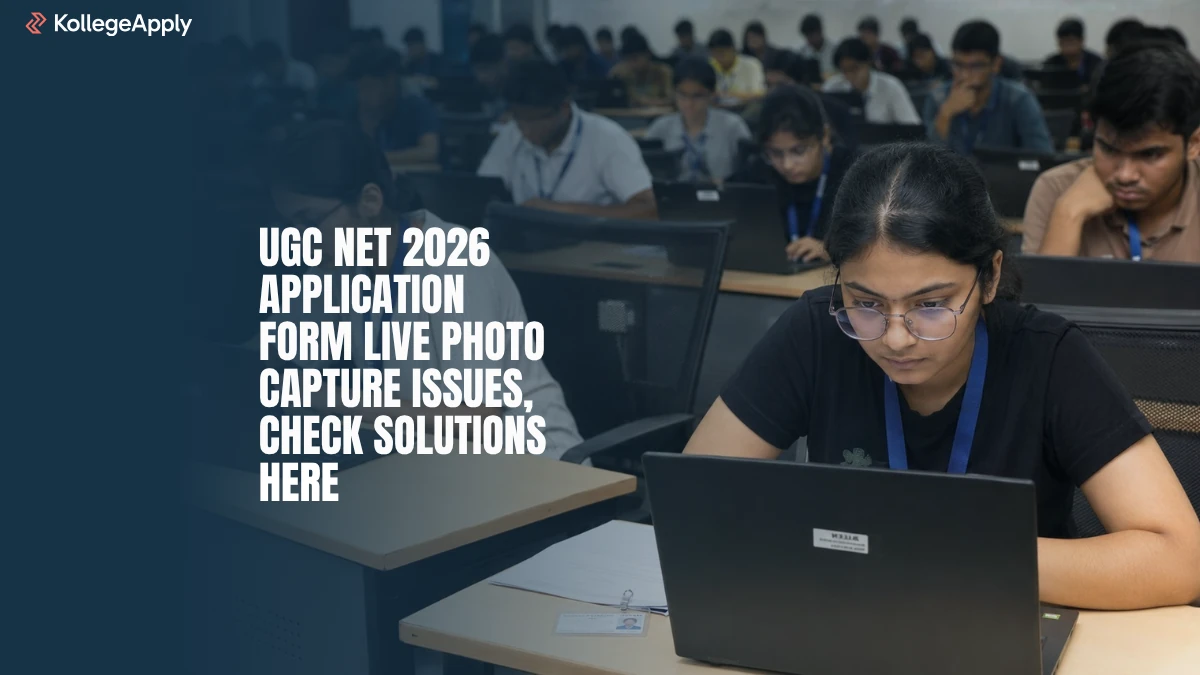
Candidates filling out the UGC NET December 2026 application form have reported difficulties with the live photograph capture process. The National Testing Agency (NTA) has shared troubleshooting steps to help applicants resolve problems while capturing their live photo during online registration.
The UGC NET live photo capture process requires candidates to ensure that their face is clearly visible to the camera. Poor lighting, an unclear background, multiple faces in the camera frame or browser-related issues may prevent successful photo capture. Candidates facing a UGC NET photo upload problem should check their camera setup and browser settings before attempting to submit the application again.
UGC NET December 2026 Live Photo Capture Issue Overview
Candidates experiencing a UGC NET application form error should first identify whether the problem is related to lighting, camera visibility or browser settings. The following table summarises the reported issue and the recommended troubleshooting measures.
Candidates should consult the latest official instructions for any additional requirements related to live photograph capture, identity verification and application submission.
How to Fix UGC NET 2026 Live Photo Capture Problems?
Candidates who cannot capture their live photograph while filling out the UGC NET December 2026 application form can try the following solutions.
- Check Lighting and Background Visibility
- Check Camera Access and Browser Settings
- Clear Browser Cache and Cookies
- Try Another Browser or Incognito Mode
UGC NET December 2026 Application Form Login Steps
Candidates who need to retry live photo capture can follow these steps to access the official application portal.
- Visit the official UGC NET website.
- Open the application or candidate login link for the December 2026 examination.
- Enter the credentials requested by the portal.
- Navigate to the relevant application stage where live photograph capture is required.
- Check camera permissions, lighting and background visibility.
- Retry the live photograph capture after applying the relevant troubleshooting steps.
- Complete the remaining application fields and submission steps, if pending.
- Save the confirmation page and payment acknowledgement, where applicable.
Candidates should follow the instructions displayed on their own application dashboard. They should not assume that successfully capturing a photograph automatically completes the entire UGC NET registration process.
What to Do If the UGC NET Live Photo Upload Problem Continues
Candidates who continue to face a live photograph capture error after trying the recommended solutions should consult the latest NTA instructions and use the official support channel specified for the December 2026 examination. Applicants should keep their application number and relevant error details available when seeking assistance. They should also check the official UGC NET documents and notices for updates, corrigenda and application-related instructions.
Candidates should avoid submitting multiple applications or relying on unofficial workarounds without checking NTA's rules. Any alternative photograph submission facility should be used only if NTA explicitly announces that it applies to the candidate's circumstances.
UGC NET 2026 Live Photo Capture Issues FAQs
Why is the UGC NET 2026 live photo capture not working?
The UGC NET live photo capture problem may be caused by poor lighting, an unclear background, multiple faces in the camera frame or browser-related issues. Candidates should check their camera setup and browser settings before retrying.
How can I fix the UGC NET December 2026 application form photo upload issue?
Improve the lighting, ensure that only one face is visible, check camera permissions, clear the browser cache and retry using another supported browser or incognito mode.
What should I do if the UGC NET live photograph is not capturing?
Ensure that the camera is working, the face is adequately illuminated and the background is clear. Allow camera access to the official application portal and retry the capture process.
Can clearing browser cache solve the UGC NET photo capture error?
Clearing the browser cache may help if stored website data is interfering with the application. Candidates can also try another browser or private browsing mode if the problem continues.
How do I enable camera permission for the UGC NET application form?
Open the browser's site settings, locate the camera permission and allow access for the official UGC NET application website where required. Reload the page and retry live photograph capture.
Entrance Exam News
Jharkhand NEET UG Counselling 2026: Stray Round Allotment 2026 (Out), Check Reporting Deadline
GATE 2027 Application Scrutiny Ongoing: Check Deadline, Defects and Status
NEET MDS Counselling 2026: MCC Releases Revised Round 3 State Schedule
CLAT Mock Test 2027: Check Login Credentials and Steps to Attempt
AYUSH NEET UG Counselling 2026: Round 3 Seat Allotment Result Out, Download PDF
ICAR PG Mop-Up Round Seat Allotment Result 2026 Out: Download Allotment Letter Here
Maharashtra NEET PG Counselling 2026: Registration Ends Today, Direct Apply Here
SNAP Mock Test 2 Begins Today: Check Login Details, Exam Pattern, Steps Here
WB NEET 2026 Seat Allotment Result Today: Direct Link to Download Result for Stray Round Here
Odisha NEET Final Merit List 2026 Released: Download Revised MBBS and BDS PDF